
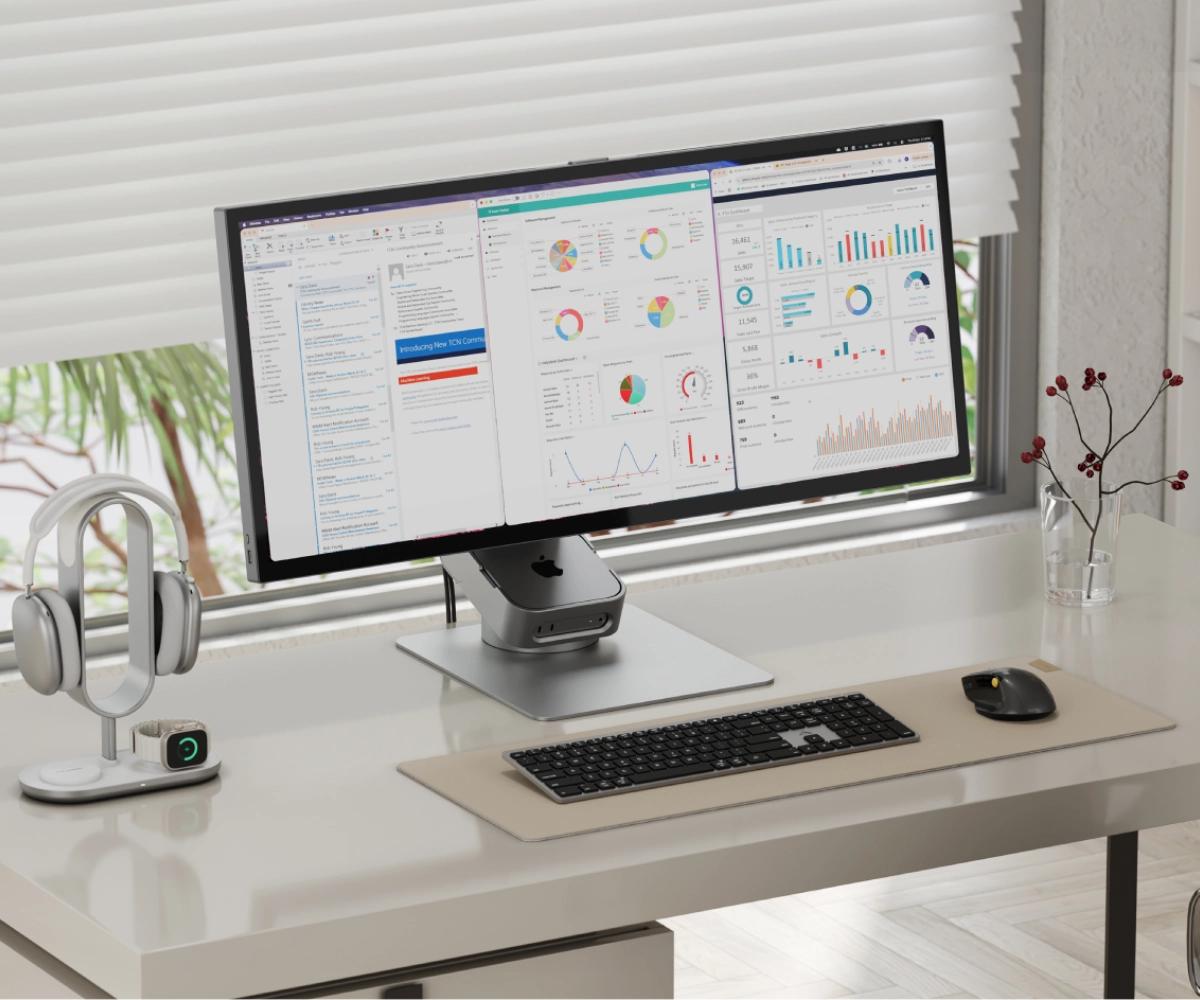
How to Choose the Right Computer: A Complete Buying Guide
Choosing the right monitor can make a big difference in work, gaming, studying, and entertainment. With different screen sizes, resolutions, refresh rates, and panel types available, it is important to choose a monitor based on how you plan to use it.
Here are the main things to consider before buying a monitor.
1. Choose the Right Screen Size
Monitor size affects both viewing comfort and desk space.
Common sizes include:
- 24-inch: Good for office work, studying, and general use
- 27-inch: A versatile choice for work, gaming, and entertainment
- 32-inch and above: Useful for gaming, editing, multitasking, and immersive viewing
Choose a size that fits comfortably on your desk and matches your viewing distance.
2
Check the Resolution
Resolution determines how sharp and detailed the image appears.
Common resolutions include:
- Full HD: Suitable for everyday use and many budget monitors
- QHD: Provides more workspace and sharper detail
- 4K: Excellent for detailed content, editing, and high-resolution media
A larger screen can benefit more from a higher resolution.
3
Consider the Refresh Rate
Refresh rate indicates how many times the screen refreshes per second.
A standard refresh rate can be suitable for office work, browsing, and general use.
Higher refresh rates can provide smoother motion, making them especially useful for gaming.
If gaming is your priority, consider the monitor’s refresh rate along with your computer’s graphics performance.
4
Choose the Right Panel Type
Different panel technologies have different strengths.
IPS
Generally known for:
- Good viewing angles
- Good color reproduction
- Versatile everyday performance
VA
Often offers:
- Good contrast
- Deeper blacks
- Good performance for entertainment
TN
Can offer:
- Fast response
- Gaming-focused performance
- Often lower cost
Choose the panel based on your priorities rather than assuming one type is best for everyone.
5
Check Response Time
Response time measures how quickly pixels can change from one state to another.
Lower response times can help reduce visible motion blur and ghosting, especially during fast-moving games.
For office work, response time is generally less important than comfort, resolution, and image quality.
6
Look at Connectivity
Before buying, check which ports the monitor provides.
Common options include:
- HDMI
- DisplayPort
- USB
- USB-C
- Audio connections
Make sure the monitor has the connections required by your computer, laptop, gaming console, or other devices.
7.Consider Ergonomics
A monitor should be comfortable to use for long periods.
Look for features such as:
- Height adjustment
- Tilt adjustment
- Swivel
- VESA mount support
A properly positioned monitor can make your workspace more comfortable.
8. Choose Based on Your Usage
For Office Work
Look for:
- Comfortable display
- Good resolution
- Suitable screen size
- Adjustable stand
- Useful connectivity
For Gaming
Prioritize:
- High refresh rate
- Low response time
- Good graphics performance
- Suitable resolution
- Adaptive sync support where appropriate
For Photo and Video Editing
Consider:
- Good color reproduction
- High resolution
- Suitable panel technology
- Wide viewing angles
- Consistent image quality
For General Home Use
A good Full HD or QHD monitor with a comfortable size and reliable connectivity may be sufficient.
9.Check Adaptive Sync Support
If you plan to use the monitor for gaming, adaptive sync technologies can help reduce screen tearing and provide smoother gameplay when supported by compatible hardware.
Check compatibility between the monitor and your graphics hardware before purchasing.
10. Compare Overall Value
Don’t choose a monitor only because it has the highest refresh rate or resolution.
Compare:
- Screen size
- Resolution
- Refresh rate
- Panel type
- Response time
- Ports
- Ergonomics
- Warranty
- Price
The best monitor is the one that provides the features you actually need at a reasonable price.
Monitor Buying Checklist
Before purchasing, check:
- Screen size
- Resolution
- Refresh rate
- Panel type
- Response time
- Connectivity
- Stand adjustment
- VESA support
- Adaptive sync
- Warranty
- Current price
Frequently Asked Questions
Is a 24-inch or 27-inch monitor better?
A 24-inch monitor is often convenient for smaller desks, while a 27-inch model provides more screen space. Choose based on your desk size and viewing distance.
Is 4K necessary?
Not for everyone. Full HD or QHD can be sufficient for everyday work and gaming, while 4K can be useful for detailed content and professional editing.
Is a high refresh rate important?
It is particularly useful for gaming and fast-moving content. For basic office work, it is generally less important.
Which panel type is best?
It depends on your needs. IPS can be a versatile choice, VA offers strong contrast, and TN can be suitable for certain performance-focused uses.
What ports should a monitor have?
HDMI and DisplayPort are common choices. USB-C can be particularly useful when connecting compatible laptops and devices.
Final Verdict
The right monitor depends on your usage, desk space, computer hardware, and budget.
For office work, prioritize comfort and resolution. For gaming, focus on refresh rate and response time. For creative work, pay closer attention to resolution and color performance.
Before purchasing, compare different monitors and verify the latest specifications, connectivity, warranty, and price from the retailer.




Leave a comment